
Connect with the instructor regularly
There are a wide variety of ways you can get connected with the instructor, to get feedback, a personalized practice plan, and more. Although the courses offered at CML are pretty straightforward and don’t require any guidance, it’s recommended that you get a minimum of 3 months of interaction with the instructor to get into the correct path.
Live Sessions
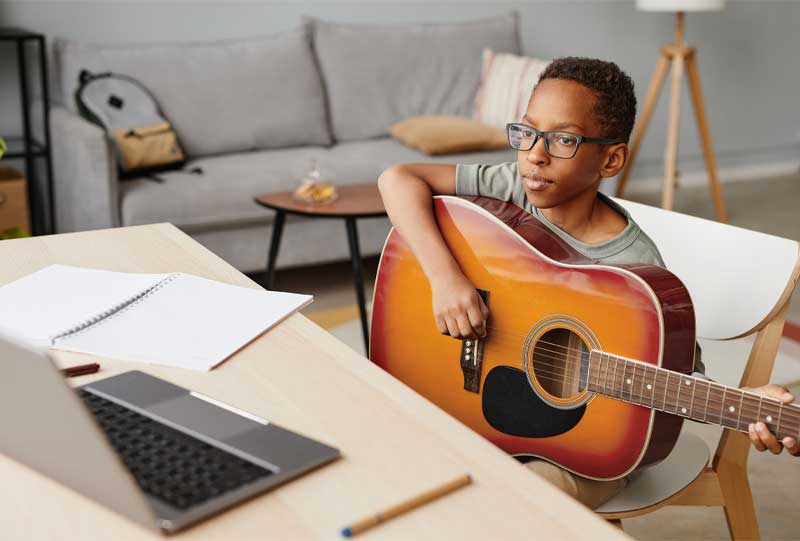
Instrumental Practice session
5 classes per week
Join the live practice session with the instructor’s guidance. Get feedback on your assignments or tasks. Get a personalised practice plan that is catered to your learning needs.
Vocal Practice Sessions
5 classes per week
Join vocal/singing sessions where the students are trained to use their voices effectively. It is a daily practice session that can transform your voice into something amazing

Personal Training Sessions
Online Self Paced
Mauris blandit aliquet elit, eget tincidunt nibh pulvinar a. Quisque velit nisi, pretium ut lacinia in, elementum id enim. Lorem ipsum dolor sit amet, consectetur adipiscing elit.
Practice Sessions
Requirements
The minimum requirements to join the virtual session are:
- The Musical Instrument
- A mobile with enough RAM for the Zoom meeting app
- High-speed Internet connection
Recommended:
- The Musical Instrument
- A laptop with Zoom installed
- High-speed Internet connection
- Mobile with a stand for recording assignments
- An unlisted Playlist on an unpublished YouTube Channel
Children aged 8 and below must be with their parent or a guardian
Structure of Live Sessions
- The students join the live practice sessions and start with the initial finger warm-ups by following along with a practice video
- Next, the student will work on taming their ears along with the finger movement, by practicing the scales, also by following the practice video
- Next, the student will work on the songs that they are learning step-by-step, adding new steps everyday
- Then the student will be asked to video record their performance and share it for reviews and feedback from the instructor
Process to get connected
- First, you need to purchase a course that includes a Live Sessions option.
- Once you purchase that course and log in, you will see a link on the menu that says live session
- Clicking on that will take you to a page that has a Join Meeting button
- Once you click on that, you will enter the Zoom meeting waiting area, and you will be accepted
Assignments
- This part is very important to those who are joining the live sessions.
- Every week minimum of 2 assignments will be given, and the students are supposed to video record their performance and submit it for review and feedback.
- Once the video is submitted, the instructor will give you clearance to move to the next topic
- Only then will the students move to the further topics
Assignment Submission
All the assignments can be submitted through WhatsApp. All the submitted videos will be uploaded to the website, which can be seen only by members. However, it is recommended to have a YouTube Private Channel where the video can be uploaded and the students’ learning can be documented
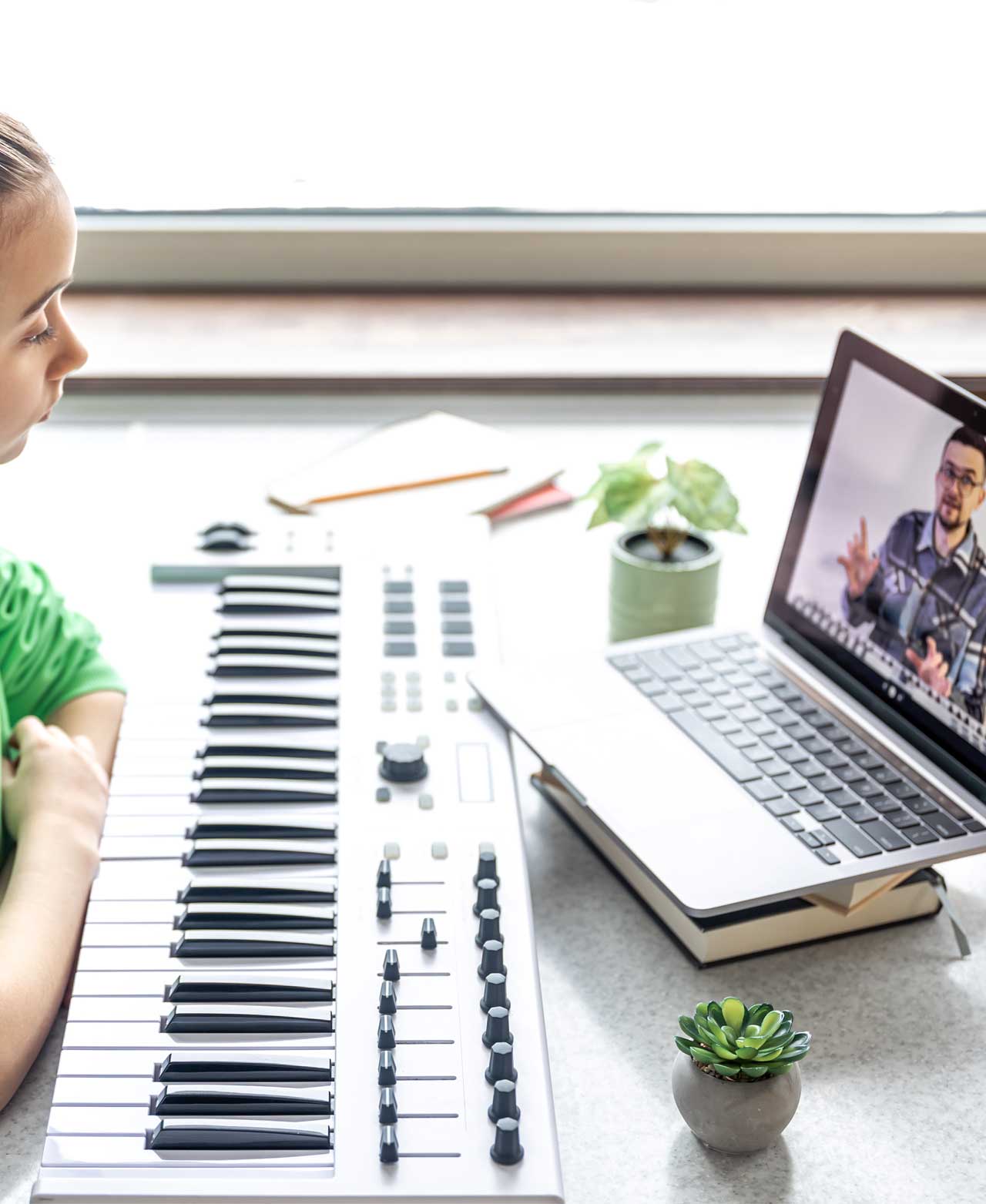
Feedback Sessions
Requirements
The minimum requirements to join the virtual session are:
- The Musical Instrument
- A mobile with enough RAM for the Zoom meeting app
- High-speed Internet connection
- A course purchased at CML
- YouTube Unlisted Playlist with the assignment uploaded
How does these work
- The subscriber joins the feedback session and provides the link to their assignment
- Next, the student will work on taming their ears along with the finger movement, by practicing the scales, also by following the practice video
- Next, the student will work on the songs that they are learning step-by-step, adding new steps everyday
- Then the student will be asked to video record their performance and share it for reviews and feedback from the instructor
Process to get connected
- First, you need to purchase a course that includes a Live Sessions option.
- Once you purchase that course and log in, you will see a link on the menu that says live session
- Clicking on that will take you to a page that has a Join Meeting button
- Once you click on that, you will enter the Zoom meeting waiting area, and you will be accepted
Check our blog page
No Results Found
The page you requested could not be found. Try refining your search, or use the navigation above to locate the post.
Virtual Sessions
M-F: 4:30 PM – 6:00 PM
Platform
Zoom Video Conference
bibleanswersin@gmail.com
Phone
+91 8978586202